
Batch Scanner
Scan a whole stack of trading cards in one batch
Upload scans or phone photos of a stack of sports cards or TCG cards. SlabIQ identifies every card in the batch, sets aside the ones it isn't sure about, and carries the results straight into pricing, listing and inventory.
No credit card required · 500 scans / month on the free plan
Why it matters
Card-by-card data entry doesn't scale
Most of the time spent selling cards goes into typing: the year, set, player or character, card number and parallel of every card, usually copied out of a search in another tab. That's fine for five cards and miserable for five hundred.
The Batch Scanner treats a stack of cards as one job. You add the images once, SlabIQ works through the whole batch, and you spend your time on the few cards that need a human decision instead of entering every card by hand.
How it works
How Batch Scanner works
- Step 1
Create a batch
Name it and, if you like, set defaults for the whole batch: sport or game, card language, condition, default price and markup, and the title and description templates to use. Only the name is required.
- Step 2
Add your card images
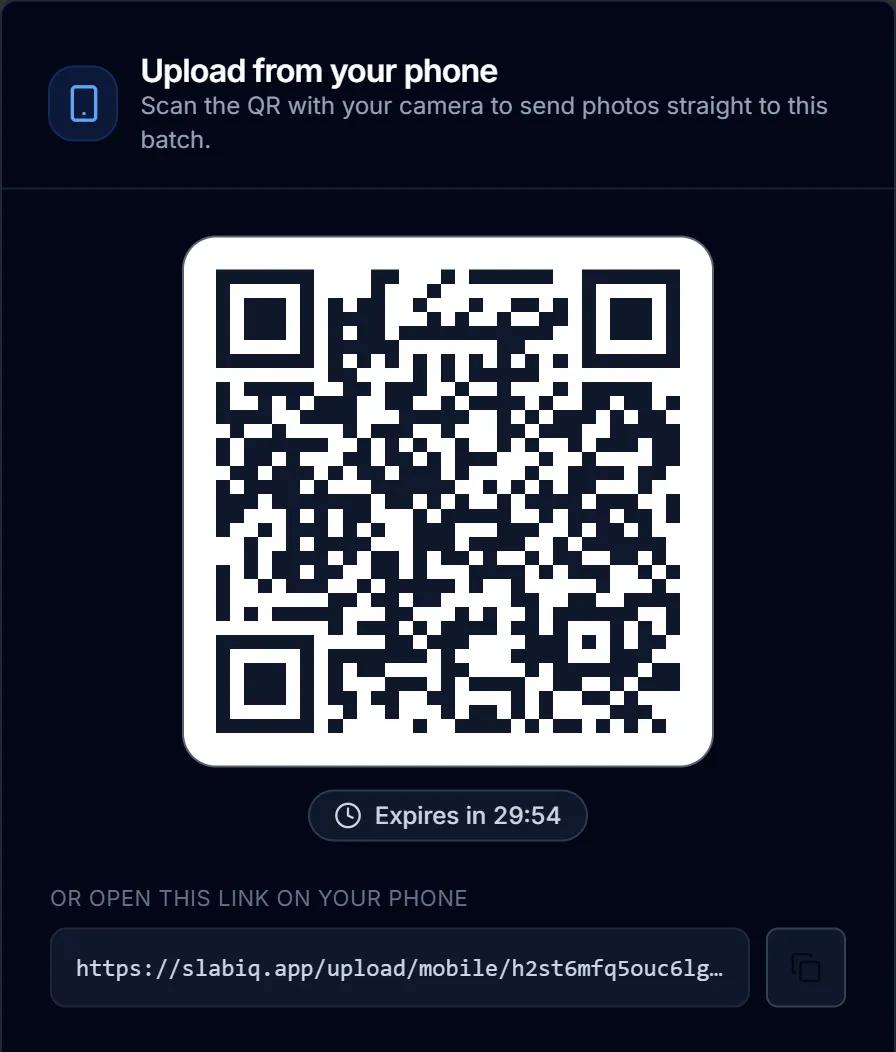
Drag in scans or a whole folder, use your device's camera, or scan a QR code and add photos from your phone. Choose front only or front and back. JPG, PNG and WebP up to 10 MB each.
- Step 3
Process the batch
Press Process and SlabIQ identifies each card against its card catalog while a progress bar tracks the run. Cards that fail can be retried.
- Step 4
Review what needs you
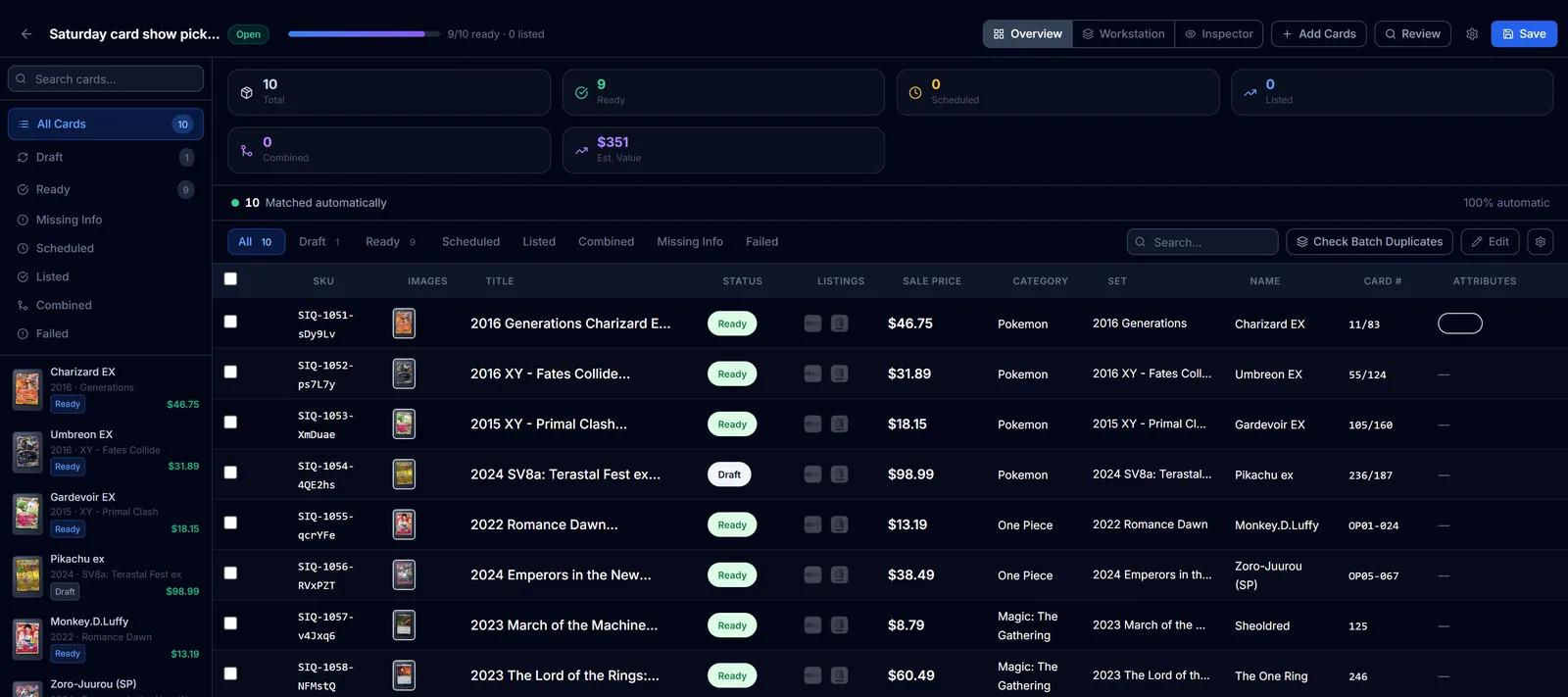
The match summary sorts the batch into cards matched automatically, cards you've confirmed, cards that need confirmation and cards with no catalog match, so you know exactly what to check.
- Step 5
Prepare the listings
Titles, item specifics and listing fields come from the identified card and your templates, with market pricing beside each card in review.
- Step 6
List or schedule
List the batch on eBay, Shopify or CardTrader, or schedule eBay listings to go live all at once or staggered over time.
Capabilities
What you can do with Batch Scanner
Front only, or front and back
Pair each card's back with its front in the same batch, or scan fronts only when the back adds nothing.
Phone upload by QR code
Open a batch on your computer, scan its QR code, and photos taken on your phone land in that batch. Nothing to install; the upload link expires after 30 minutes.
Batch-wide defaults
Set the sport or game, card language, condition, default price, markup and templates once for the batch instead of card by card.
Sports cards and TCGs
Baseball, basketball, football, hockey, soccer, MMA, wrestling, racing and golf, plus Pokémon, Magic: The Gathering, Yu-Gi-Oh!, One Piece, Disney Lorcana and Flesh and Blood.
Five card languages
Set English, Japanese, Korean, or Traditional or Simplified Chinese for a batch.
A match summary you can act on
Every card lands in one bucket: matched automatically, confirmed by you, needs confirmation, no catalog match, or failed and ready to retry.
Duplicates inside the batch
Check Batch Duplicates finds copies of the same card in a batch and combines them into one listing with the quantities added up, and you can undo it.
Lots and variations from the same scan
When a batch is processed, send its cards to the Lot Builder or the Variation Builder instead of listing them one by one.
List to your marketplaces
Publish reviewed cards to eBay, Shopify and CardTrader from the batch. CardTrader listings need a TCG catalog match.
Scheduled eBay listings
Choose a start date and time, then schedule the whole batch for one moment or stagger the start times.
Your phone is the scanner
No scanner needed: scan the QR code and your phone's photos go straight into the batch. Nothing to install.
Your photo beside the catalog match
AI identification: your photo beside the catalog match, with a confidence score. Uncertain matches are flagged for review instead of guessed.
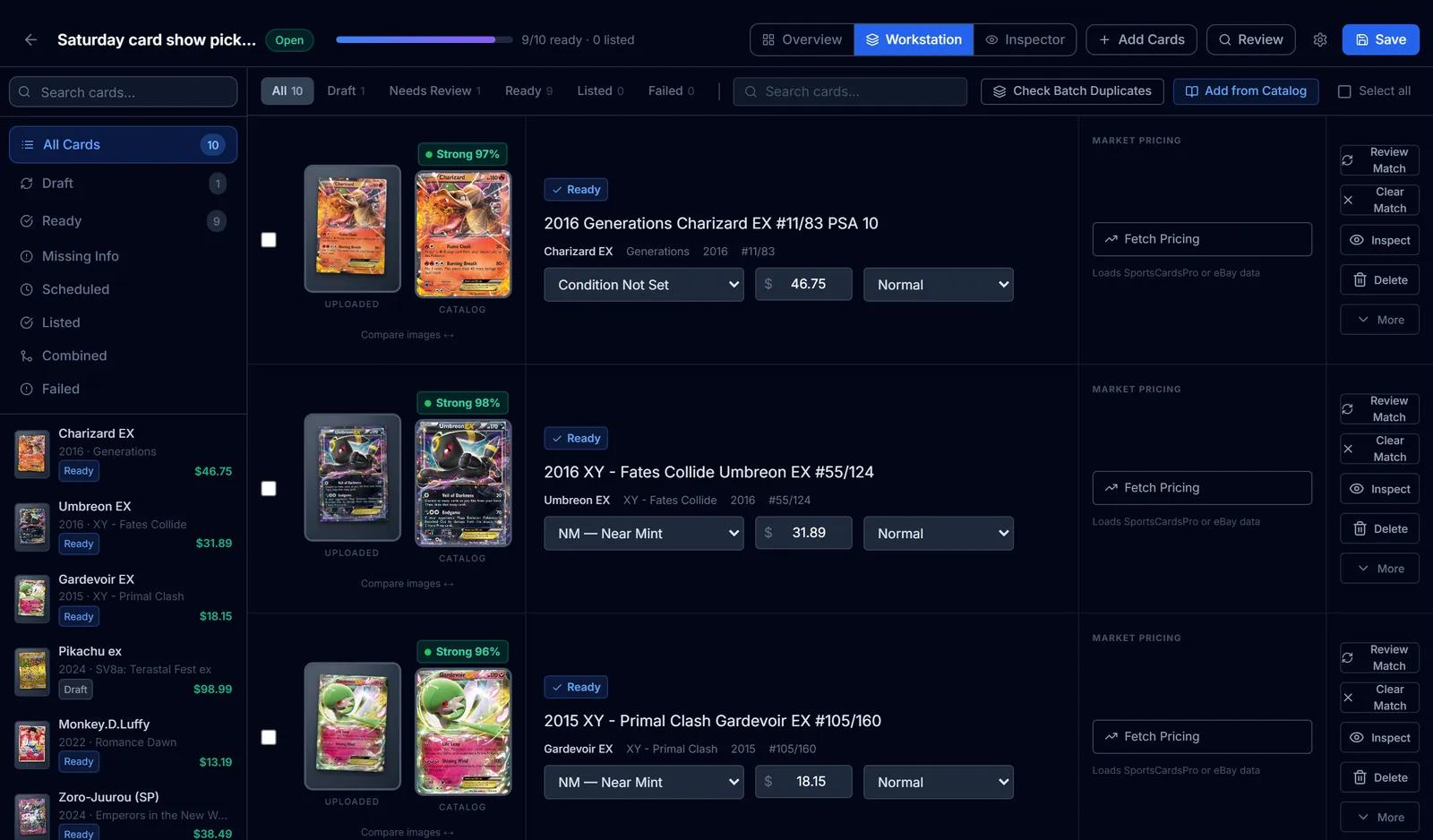
Screens from SlabIQ with a sample account: real catalog cards; prices, costs and sales are examples.
Good to know
What to expect
- Identification isn't perfect. Cards SlabIQ can't match with confidence are marked for your confirmation instead of being guessed, and some cards will need details entered by hand.
- Each identified card uses scan credits from your plan. Cards matched by image fingerprint cost less, and cards that fail aren't charged. Your plan's allowance is on the pricing page.
- Sealed product batches aren't scanned: sealed items are entered rather than identified from photos.
- A marketplace appears as a listing option once it's connected to your account.
Use cases
Who uses Batch Scanner
Breakers
Photograph the hits and the base from a break and identify them as one batch instead of entering each card separately.
eBay sellers
Turn a stack of new pickups into eBay listings with titles and item specifics filled in from the identified card, ready for you to check.
Card show buyers
Shoot a show haul on your phone, send it to a batch by QR code, and have it identified by the time you're home.
Card shops
Process incoming cards in batches and list them to eBay, Shopify and CardTrader from the same records.
Questions
Batch Scanner: common questions
Do I need a card scanner?
Can it scan the back of the card too?
What happens when SlabIQ isn't sure about a card?
Does every card use a scan credit?
Which cards does the Batch Scanner support?
Can I list straight from a batch?
Keep exploring
Related features and tools
AI Card Scanner
Identify sports cards and TCG cards from photos, linked to a specific catalog card, with uncertain matches flagged instead of guessed.
Learn more about AI Card Scanner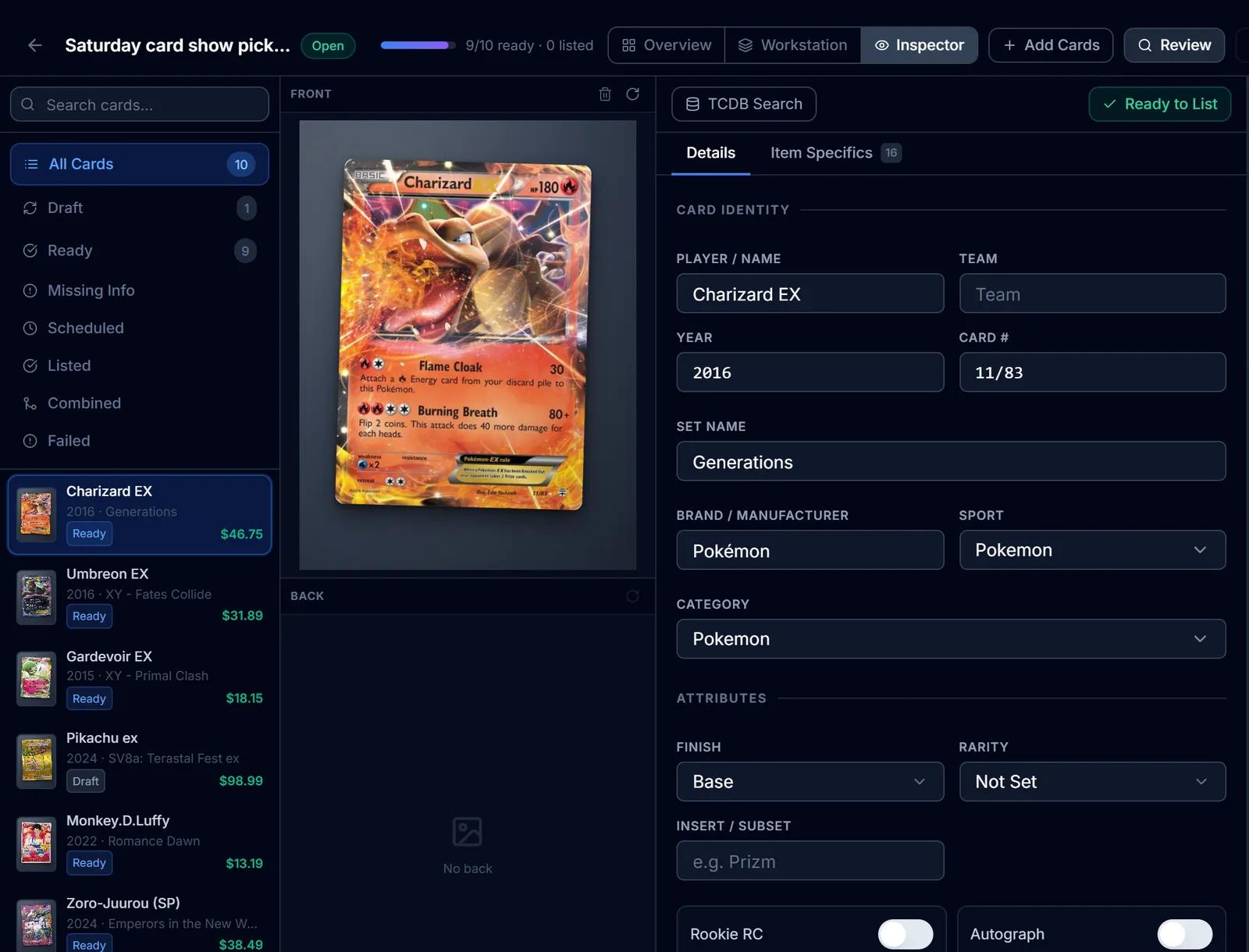
eBay Listing
eBay listings built from the identified card: titles, item specifics, graded fields, Best Offer and scheduled starts.
Learn more about eBay Listing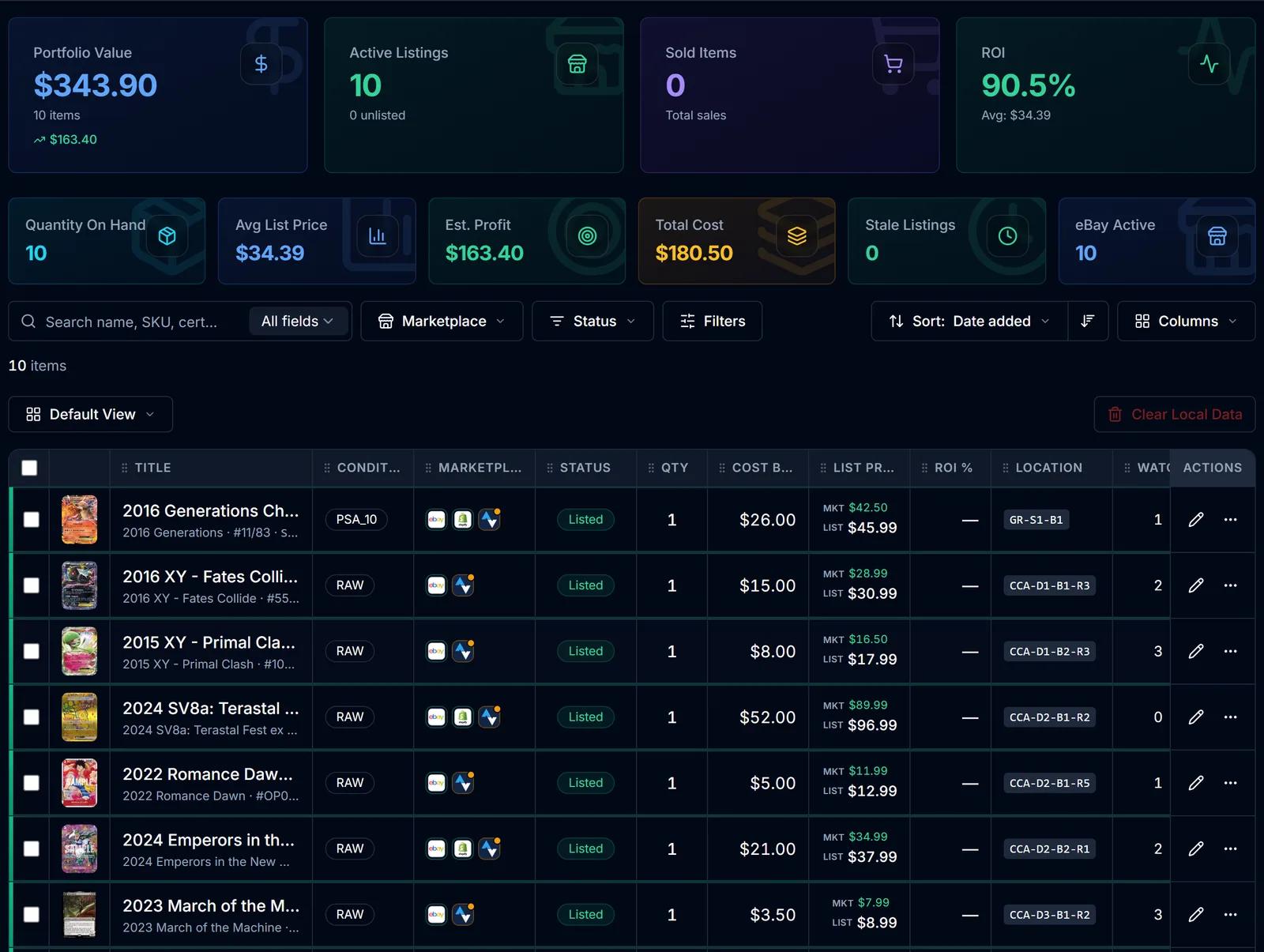
Inventory Manager
One record per card with cost basis, market and list price, ROI, marketplace status and storage location.
Learn more about Inventory Manager
Try Batch Scanner on your own cards
Create a free SlabIQ account and see it work with your own inventory. No credit card required.
500 scans / month on the free plan